
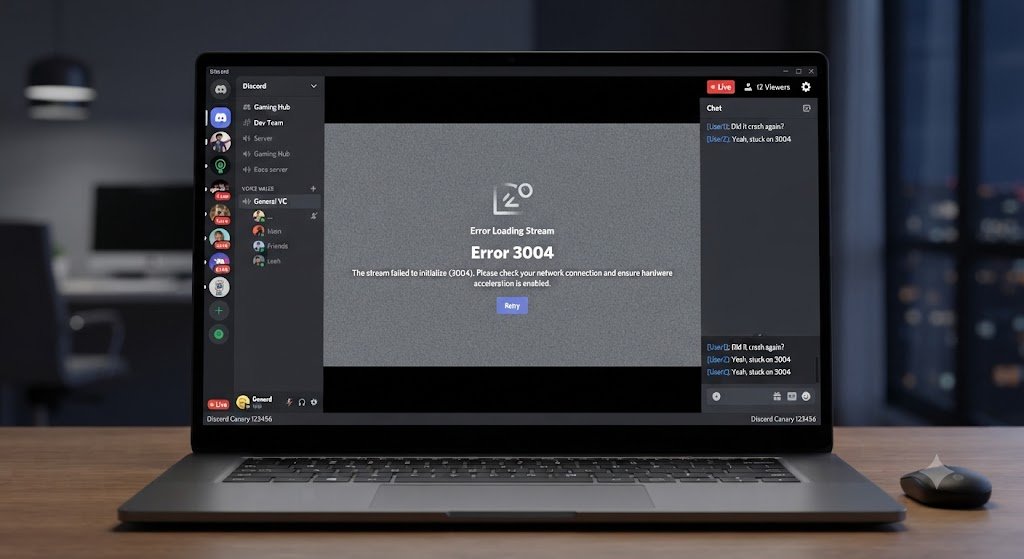
The Error 3004 Discord stream problem can appear when a screen share fails to start, disconnects after a few minutes, or cannot capture the selected application. The frustrating part is that the message gives users almost no useful context, so many people change random settings without identifying whether the real fault lies with screen capture, permissions, the graphics pipeline, or the network.
There is also an important accuracy issue. As of July 2026, Discord’s official audio and video error guide documents codes 3001, 3002, and 3003, but it does not define code 3004 in its reference table. Community reports consistently associate the code with streaming and screen-sharing failures, yet it is safer to treat it as a capture or stream-session symptom, not a formally documented diagnosis.
Quick Answer: How to Fix Error 3004 Discord Stream
For most users, the fastest fix for Error 3004 Discord stream is to open User Settings > Voice & Video > Video and enable “Use operating system menus to select a screen capture source.” Fully close Discord, reopen it, and test the stream again. Multiple users have reported that this setting restored screen sharing, although it does not work in every case.
If that does not solve the problem, use this order instead of trying everything at once:
- Fully close Discord and restart the computer.
- Confirm Discord has screen-recording or screen-sharing permission.
- Test both states of hardware acceleration.
- Update Discord, the operating system, and the graphics driver.
- Share a different application or the entire screen.
- Lower the stream resolution and frame rate.
- Disable conflicting overlays, capture tools, or VPN software temporarily.
- Clear Discord’s cache or perform a clean reinstall.
- Check Discord Status before changing deeper system settings.
This sequence moves from low-risk changes to more disruptive repairs. It also helps isolate the responsible layer, which matters because reinstalling Discord will not fix a missing macOS permission, while changing a GPU setting will not resolve a platform-wide outage.
What Does Error 3004 Discord Stream Actually Mean?
The Error 3004 Discord stream message generally appears when Discord fails to establish a capture source required for Go Live or screen sharing. This source can be a game window, browser, desktop, monitor, or application surface, which the OS and GPU drivers operate on.
The organization has not disclosed information about Error 3004 in the latest version of its error table. The closest equivalent, code 3003, indicates that Android does not support screen sharing, and error codes 2001-2015 describe a wide range of streaming-related issues ranging from launch problems and encoder malfunctions to weak internet connectivity and streamer timeouts. Therefore, understanding the symptoms of a problem is more important than searching for a particular reason for Error 3004.
Common Symptoms
You may be dealing with the same underlying issue when:
- The stream closes immediately after clicking Go Live.
- Screen sharing works briefly and then stops.
- Discord shows a black preview or no capture source.
- One application fails while full-screen sharing works.
- The stream runs without audio or loses audio later.
- The desktop app fails, but the browser version works.
- The issue started after a Discord, macOS, Windows, or GPU update.
The timing provides useful evidence. An immediate failure often points to permissions or capture-source selection, while a stream that fails after several minutes may indicate encoder instability, system load, driver problems, or an unstable connection.
Why Error 3004 Discord Stream Happens
The Error 3004 Discord stream issue is best understood as a failure somewhere in the screen-sharing chain. Discord must receive permission, identify a valid source, capture frames, encode the video, transmit it, and keep the session alive. A break at any stage can produce a similar user-facing result.
The most likely causes are:
- Capture-source conflict: Discord’s default capture method may not correctly detect a window or monitor.
- Missing operating-system permission: Screen recording or accessibility access may be disabled.
- Hardware acceleration conflict: The GPU-assisted path may be unstable with a particular driver, application, or update.
- Outdated software: Discord, the operating system, or the graphics driver may be incompatible with another component.
- Application-specific blocking: A protected video surface, elevated application, or unusual display mode may resist capture.
- High system load: Games, browsers, recording tools, and background apps may compete for GPU encoding or memory.
- Network instability: Packet loss or poor upload quality can interrupt the outgoing stream.
- Corrupted local data: Cache or installation files may stop Discord from initializing its capture components correctly.
Discord’s own guidance confirms that streaming problems can involve internet stability, outdated app versions, hardware acceleration, permissions, and system resources. It also recommends lowering stream quality for poor connection or performance conditions.
How to Fix Error 3004 Discord Stream Step by Step
Do not apply all fixes simultaneously. Test the Error 3004 Discord stream after each change because the result tells you which layer was responsible and prevents unnecessary changes to working settings.
1. Restart the Stream, Then Fully Restart Discord
Stop sharing, leave the voice channel, and start the stream again. If the error returns, quit Discord completely from the system tray or use Task Manager or Activity Monitor to confirm that no Discord process remains open.
Restart the device before moving to advanced steps. Discord officially recommends restarting the stream and fully reopening the app for stream-start failures, while a device restart clears temporary capture, driver, and resource states.
2. Enable the Operating-System Screen Capture Menu
Open User Settings > Voice & Video, locate the Video or screen-capture options, and enable Use operating system menus to select a screen capture source if the option is available. Restart Discord after changing it.
This is the most frequently repeated community fix for Error 3004 Discord stream. Several users reported success after enabling it, though at least one reported no improvement, so treat it as a high-priority test rather than a guaranteed cure.
3. Verify Screen-Sharing Permissions
On macOS, open System Settings > Privacy & Security and confirm Discord is allowed under Screen & System Audio Recording or the equivalent screen-recording section for your macOS version. Also check Accessibility if Discord cannot interact correctly with captured applications, then quit and reopen Discord.
Discord’s official guide instructs macOS users to allow Discord under Screen Recording. For Windows, Discord recommends checking screen-recording permission and trying Run as administrator, especially when the application being captured runs with elevated privileges.
4. Test Hardware Acceleration in Both Directions
Go to User Settings > Voice & Video > Video and change Hardware Acceleration, then restart Discord. If it is enabled, test it disabled; if it is already disabled, test it enabled.
This two-way test is more accurate than blanket advice to turn the feature off. Discord recommends disabling hardware acceleration when a stream lags, but its error guide recommends enabling it for encoder, decoder, and timeout problems. The correct state therefore depends on the GPU, driver, workload, and exact failure mode.
5. Update Discord, the Operating System, and GPU Drivers
Install the latest stable Discord build and all pending Windows or macOS updates. Then update the NVIDIA, AMD, or Intel graphics driver from the manufacturer’s official utility or support site and restart the computer.
Discord specifically recommends keeping the app current and installing the latest stable graphics driver for video-processing errors. Community reports also indicate that an operating-system update resolved code 3004 for some macOS users, although that evidence is anecdotal rather than an official universal fix.
6. Test a Different Capture Source
Share a simple application such as a text editor, then test the full screen, a browser window, and the original game or app. If only one program fails, the problem is probably source-specific rather than a complete Discord failure.
Discord allows users to select an individual application or an entire screen. Games may also need to be recognized by Discord’s game detection system or manually added in Game Activity before they can be streamed through the game-specific workflow.
7. Match Privilege Levels and Disable Conflicting Overlays
If a game or application is running as administrator, launch Discord as administrator for the test. A lower-privileged process may fail to capture an elevated application correctly.
Temporarily disable overlays and capture utilities such as the Discord overlay, Xbox Game Bar, GPU overlays, OBS hooks, performance monitors, or third-party screen recorders. Re-enable them one by one after the Error 3004 Discord stream problem disappears to identify the conflict.
8. Lower Resolution and Frame Rate
Set the stream to 720p at 30 fps or the lowest available combination and test again. Lower settings reduce encoding load, GPU usage, memory pressure, and upload bandwidth demand.
Discord’s official guidance recommends reducing resolution or frame rate when users experience low frame rates, packet loss, poor network quality, or hardware limitations. Users can change stream quality while live through the stream controls, although browser streaming offers fewer quality controls.
9. Test the Network Without Guessing
Use a wired connection if possible, pause large uploads, and temporarily disconnect a VPN or proxy. Then test Discord on a different network, such as a mobile hotspot, only long enough to compare results.
If Error 3004 Discord stream disappears on another network, investigate router filtering, packet loss, VPN routing, or ISP instability. Discord recommends a stable connection and states that many streaming quality and timeout errors can be resolved by checking network quality or trying another network.
10. Clear Local Data or Reinstall Discord
Close Discord completely before clearing its cache folders. On Windows, users commonly remove the Cache, Code Cache, and GPUCache folders from the Discord data directory; on macOS, comparable data is stored in the user Library’s Application Support directory.
If the problem persists, uninstall Discord, restart the device, and download a fresh installer from Discord’s official download page. Reinstallation is a last step because it replaces damaged local files, but it will not correct an operating-system permission that remains denied.
A Faster Diagnostic Method for Error 3004 Discord Stream
Use the behavior of the Error 3004 Discord stream problem to narrow the cause before changing more settings:
| What happens | Most likely area to test first |
|---|---|
| Stream fails immediately | Screen-capture source and permissions |
| Only one app fails | App-specific capture, privilege level, or protected surface |
| Stream stops after several minutes | GPU driver, hardware acceleration, system load, or network |
| Black screen with audio | Capture method, display mode, or GPU path |
| Video works but audio does not | Sound-sharing permission or unsupported audio capture |
| Browser works but desktop fails | Desktop settings, cache, driver, or installation |
| Everyone is affected at once | Discord service incident |
Discord’s official Go Live documentation notes that audio capture availability varies by platform and that Linux does not support shared application audio. It also distinguishes between application capture, full-screen capture, and game detection, which makes source-by-source testing more useful than repeatedly reinstalling the app.
Check Whether Error 3004 Discord Stream Is a Discord Outage
Before resetting drivers or deleting files, check Discord Status. A widespread voice, media, gateway, or desktop-client incident can create stream failures that no local setting will repair.
At the time of verification on July 16, 2026, Discord Status showed all systems operational and no incident reported that day. That status can change at any time, so readers should check the live page whenever the Error 3004 Discord stream message appears.
How to Prevent Error 3004 Discord Stream From Returning
You cannot prevent every software regression, but you can reduce the likelihood of Error 3004 Discord stream failures by keeping the capture environment predictable. Avoid stacking multiple overlays and recording applications, restart after driver updates, and verify screen-recording permission after major operating-system upgrades.
Use these habits:
- Keep Discord and GPU drivers on stable releases.
- Use a wired connection for important streams.
- Close unused GPU-heavy browser tabs and applications.
- Keep enough free memory and storage for normal system operation.
- Test the stream before an event or presentation.
- Record which hardware-acceleration state works on your device.
- Avoid changing several capture settings at the same time.
A short pre-stream test is especially valuable after Discord, Windows, macOS, or graphics-driver updates. It gives you time to identify a changed permission, altered capture method, or driver regression before other viewers join.
When to Contact Discord Support
Contact Discord Support when Error 3004 Discord stream continues across multiple applications, networks, and Discord clients after permissions, updates, and hardware acceleration have been tested. The strongest support request includes evidence that lets the team reproduce or classify the fault.
Discord asks users to provide:
- A clear description and the exact error code.
- Device model and operating-system version.
- Discord app version.
- Whether the issue affects desktop, browser, or mobile.
- Screenshots of Voice & Video settings.
- Relevant input and output devices.
Add the captured application, GPU model, approximate time before failure, and whether full-screen sharing behaves differently. Discord’s official support form requires users to sign into the support portal before submitting a ticket.
Frequently Asked Questions
Is Error 3004 an Official Discord Stream Error Code?
Users do encounter the Error 3004 Discord stream code, but Discord’s current official audio and video reference does not list 3004. It lists 3001 for no microphone, 3002 for silent input, and 3003 for unsupported Android screen sharing, so any fixed definition of 3004 should be presented cautiously.
Why Does Discord Error 3004 Appear Only When I Share One Application?
The application may use a capture mode, privilege level, protected video surface, or graphics API that Discord cannot capture reliably. Test the entire screen and a basic application; if those work, focus on the failing program rather than reinstalling Discord immediately.
Should Hardware Acceleration Be On or Off for Error 3004 Discord Stream?
Test both states. Discord recommends disabling it for lagging streams but recommends enabling it for some video encoder, decoder, and timeout errors, which means there is no universally correct setting for every GPU and driver combination.
Why Does the Stream Work for a Few Minutes and Then Show Error 3004?
A delayed failure is more consistent with encoder instability, rising GPU or memory load, driver issues, or network degradation than with a completely missing permission. Lower the stream quality, close competing applications, update the graphics driver, and test another network.
Can Reinstalling Discord Permanently Fix the Problem?
It can fix damaged app files or corrupted local data, but it cannot guarantee a permanent repair. If the root cause is an operating-system permission, a specific application, a driver regression, or a Discord service issue, that cause must be corrected separately.
Conclusion
The safest way to fix Error 3004 Discord stream is to troubleshoot the capture chain in order: restart Discord, enable the operating-system capture menu, confirm screen-recording permission, test hardware acceleration both ways, update software and drivers, then isolate the application and network. That process is faster and more reliable than applying random one-click fixes.
Start with the capture-source setting because it has the strongest repeated community success pattern. If Error 3004 Discord stream survives every local test, document the app version, operating system, GPU, capture source, and failure timing, then submit the evidence to Discord Support for further investigation.
