
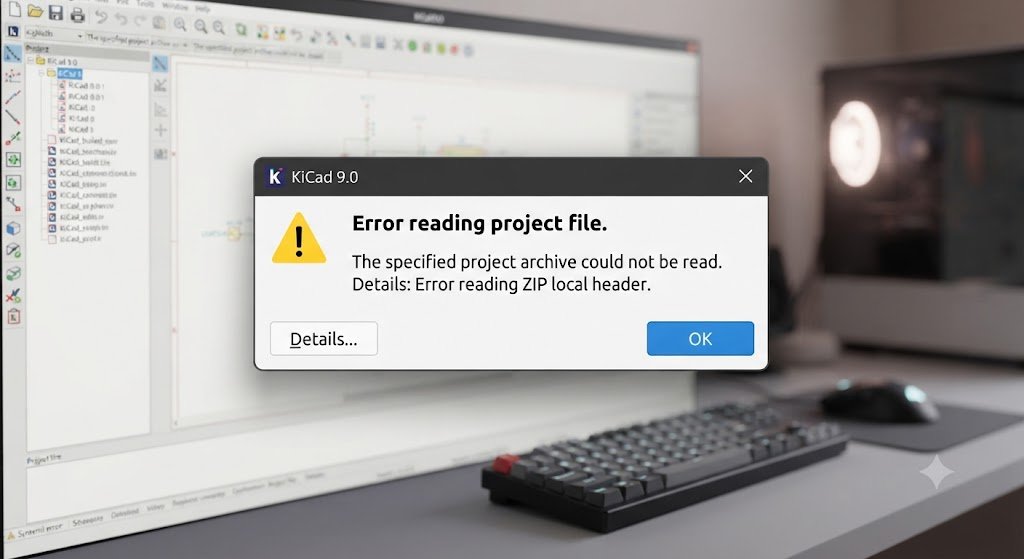
The KiCad 9 error reading ZIP local header message appears when KiCad expects ZIP-formatted data but cannot read the record that introduces an archived file. It may happen while unarchiving a project, loading a third-party footprint library, or installing a package through the Plugin and Content Manager.
Do not reinstall KiCad or overwrite the original file yet. First identify which archive, URL, library entry, or cache item triggered the KiCad 9 error reading ZIP local header, then test that item outside KiCad.
Key takeaways:
- A project ZIP may be incomplete, corrupt, encrypted, split, or incorrectly named.
- A footprint-library entry may point to a GitHub webpage instead of a local
.prettyfolder. - A Plugin and Content Manager package may have a damaged download or cloud-synced cache.
- Extracting readable files and rebuilding a clean archive is safer than editing the original.
- Reinstalling KiCad does not repair a broken ZIP or invalid library path.
What the KiCad 9 Error Reading ZIP Local Header Means
A ZIP archive consists of several records with different structures, which are chained together in a specific order. One of them is the local file header, and another is the corresponding entry in the central directory, and these two parts are always present for each archived file. The local-header record always starts with a standard 4-byte signature, which is 0x04034b50 (PK 03 04 in hex format).
The KiCad 9 error reading ZIP local header indicates that KiCad could not read some expected data at the location where the local header should be. The possible reason is that the file does not have enough data due to being truncated or incorrectly transferred, is not a ZIP file at all, has some special features in its headers (if KiCad uses a ZIP library that cannot handle them), or KiCad is erroneously trying to read HTML code as a ZIP archive.
The Message Does Not Automatically Mean the PCB Is Lost
This error describes a ZIP-reading failure, not necessarily corruption of every design file. Your .kicad_sch and .kicad_pcb files may still be recoverable from a partly damaged archive, while a “ZIP” downloaded from the wrong URL may simply be an HTML login page or error response.
Identify Which KiCad Workflow Is Failing
Start with the exact action that triggered the KiCad 9 error reading ZIP local header. If it appeared after File → Unarchive Project, investigate the project archive. If it appeared in the Footprint Browser, inspect the footprint library table. If it occurred during a PCM installation, inspect the downloaded package and cache.
KiCad 9 uses ZIP archives for project archiving, while the Plugin and Content Manager downloads installable packages from online repositories. Native KiCad footprint libraries are different: they are normally .pretty folders containing .kicad_mod files, not GitHub webpages.
| Where the error appears | Likely cause | First action |
|---|---|---|
| Unarchive Project | Damaged or incompatible ZIP | Test the archive externally |
| Footprint Browser | Invalid path or obsolete remote entry | Disable suspect library rows |
| PCM installation | Failed download or corrupt cache | Remove the affected cached package |
| After a major upgrade | Old library configuration | Rebuild or reset library tables |
| File from email, cloud storage, or GitHub | Partial transfer or wrong download link | Download the actual file again |
This context check prevents the KiCad 9 error reading ZIP local header from being misdiagnosed as a damaged board when the real problem is only a broken library URL or cached package.
Fastest Safe Fix for the KiCad 9 Error Reading ZIP Local Header
Copy the failing file and project folder to a new local directory before testing. Avoid working directly inside OneDrive, Dropbox, a network share, a USB device, or an email preview because synchronization and partial-download behavior can alter the file during recovery.
Next, validate the copied archive with another ZIP reader. This single test tells you whether the KiCad 9 error reading ZIP local header is caused by invalid archive data or by a KiCad-specific configuration or compatibility problem.
Step 1: Preserve the Original
Create a duplicate such as project_recovery_copy.zip, record its file size, and leave the source untouched. Extract recovered data into a new empty folder so existing project files are never overwritten by incomplete versions.
Before making changes:
- Copy the original ZIP file.
- Copy any existing project directory.
- Record the original file size and modification date.
- Pause synchronization for the recovery folder.
- Never run repair tools against your only copy.
Step 2: Test the ZIP Independently
Use 7-Zip’s Test command, 7z t project.zip, or unzip -t project.zip where available. Python users can run python -m zipfile -t project.zip; Python’s standard zipfile module supports reading, listing, testing, and extracting ZIP archives.
Interpret the result carefully:
- The test passes: Extract the archive and open its
.kicad_profile. - CRC error: At least one archived file is damaged.
- Unexpected end of file: The transfer or write process probably stopped early.
- Not a ZIP file: The extension is wrong or the download returned web content.
- Unsupported method or encryption: Extract and repack using an ordinary, unencrypted ZIP.
Step 3: Rebuild a Clean Project Archive
If another tool extracts the files, open the recovered .kicad_pro from the extracted folder rather than retrying the suspect archive. Verify the schematic and PCB, save copies, and create a replacement using File → Archive Project.
KiCad’s archive feature includes core design files, project library tables, models, scripts, manufacturing outputs, and several supporting formats from the project folder. A fresh KiCad-generated archive removes damaged directory records and unnecessary third-party ZIP options.
Fixing the KiCad 9 Error Reading ZIP Local Header in a Project Archive
For project files, the KiCad 9 error reading ZIP local header commonly follows an interrupted browser download, incomplete cloud synchronization, failed copy, storage problem, or malformed archive creation. Compare the archive size with the sender’s original and download it again before attempting aggressive repair.
Confirm that the file is genuinely a ZIP. Renaming .7z, .rar, or a downloaded webpage to .zip changes only the filename; it does not convert the contents into the ZIP format.
Check Whether the Download Is Actually an HTML Page
This frequently happens when someone right-clicks a GitHub webpage and selects a browser save option instead of downloading the actual repository archive or release asset. The saved file might carry a .zip name while containing HTML, a redirect page, an access-denied response, or JSON data.
Open a copy with a text editor. If you see content such as <html>, <!DOCTYPE html>, “Sign in,” “Access denied,” or an API error message, return to the source and use its proper download button.
Use Conservative ZIP Settings
When recreating the file with a third-party archiver, use a single-volume ZIP with Store or Deflate compression and no password. Avoid split archives, self-extracting executables, unusual compression methods, and unnecessary encryption for routine KiCad exchange.
The ZIP specification permits streaming descriptors, encryption, split volumes, ZIP64 records, and extensible metadata. Those features are valid, but a plain archive provides stronger interoperability and fewer opportunities for parser differences.
Fixing the KiCad 9 Error Reading ZIP Local Header in Footprint Libraries
When the KiCad 9 error reading ZIP local header appears while browsing or assigning footprints, the project archive may be completely unrelated. Open Preferences → Manage Footprint Libraries, deactivate custom entries, restart the editor, and re-enable entries one by one until the failing row is found.
A native footprint library should resolve to an actual .pretty folder containing .kicad_mod files. KiCad requires a valid path and correct library type, and it allows you to make a broken library inactive without deleting its configuration immediately.
Remove Legacy GitHub Plugin Entries
KiCad removed support for the old GitHub library plugin in version 6.0. Therefore, a legacy Github-type row, a repository webpage URL, or a URL aimed at a repository subdirectory should not be used as a KiCad 9 footprint library.
Clone or download the repository locally, locate the required .pretty directory, and add that folder using the KiCad library type. Historical KiCad forum cases produced the same ZIP local-header message from GitHub subpaths, and the recommended fix was to use a local clone instead.
Verify the Library Type and Path
Inspect the library row’s type, nickname, URI, and path variables. A common mistake is selecting the repository’s top folder when the real library sits one level deeper, such as:
repository/footprints/Connector.prettyThe selected .pretty folder should contain files such as:
USB_C_Receptacle.kicad_mod
Terminal_Block_2Pin.kicad_mod
Custom_Footprint.kicad_mod
If the selected location contains only another folder, a README file, or a downloaded ZIP, KiCad is not pointing at the native footprint library itself.
Check Path Variables and Nested Folders
For portable project libraries, place the .pretty folder inside the project and reference it with ${KIPRJMOD}. This lets the library travel with the project without relying on one computer’s absolute directory structure.
KiCad also supports versioned footprint-path variables. However, manually defined variables from an older installation can override automatic resolution and point toward directories that no longer exist.
Fixing the KiCad 9 Error Reading ZIP Local Header in PCM
If the KiCad 9 error reading ZIP local header appears during a Plugin and Content Manager installation, retry once using a stable connection. If it repeats, close KiCad and remove only the affected downloaded package or cache directory identified by the error, then reopen PCM so it downloads a fresh copy.
For PCM, the KiCad 9 error reading ZIP local header usually concerns the downloaded package rather than the board or schematic currently open. Avoid resetting unrelated project settings until the package file has been tested.
Delete Only the Affected Cache Entry
Do not immediately delete the entire KiCad configuration directory. Look at the error message or log for the precise package filename or cache path, close every KiCad window, and move that specific item to a temporary backup location.
After restarting KiCad:
- Open Plugin and Content Manager.
- Refresh the repository information.
- Retry the package download.
- Test another package if the failure continues.
- Report the issue when only one specific package fails repeatedly.
PCM obtains packages from internet repositories, and third-party package developers maintain their own archives. If one package repeatedly fails while others work, report its name, version, repository, and complete error text to its maintainer.
Rule Out Sync and Security Interference
Test with KiCad user data stored in a normal, non-synced local directory. A documented KiCad issue showed PCM resource and package hash failures when its storage was backed by OneDrive, demonstrating that sync-backed cache behavior can disrupt download verification and cleanup.
Also review antivirus or controlled-folder protection logs for quarantined or locked archives. Do not disable system security broadly. Restore or permit a file only after confirming that the package and its source are trustworthy.
Fixing the KiCad 9 Error Reading ZIP Local Header After an Upgrade
An upgrade-related KiCad 9 error reading ZIP local header often comes from old configuration rather than damaged design data. KiCad keeps separate settings for each major release, and its documentation states that previous symbol and footprint library tables are not imported automatically.
If you manually copied an older fp-lib-table, it may contain obsolete GitHub plugin entries, invalid paths, or references to libraries that are no longer installed. Back up the table, use Reset Libraries or create a clean default table, and then re-add only verified local libraries.
Reset the Footprint Table Carefully
Open Preferences → Manage Footprint Libraries and export or copy any custom paths you still need. Disable suspicious entries before performing a full reset, because one broken row may be the only cause.
After resetting:
- Confirm that official libraries load.
- Re-add custom
.prettyfolders individually. - Use the KiCad library type for native footprints.
- Avoid copying unreviewed tables from KiCad 5 or earlier.
- Replace remote GitHub plugin rows with local paths.
Update the KiCad 9 Patch Release
Use the latest available KiCad 9.0.x maintenance build when your environment must remain on version 9. KiCad recommends installing current bugfix releases regularly, but you should still back up projects before changing major versions because newer formats may prevent modified projects from reopening in older releases.
The official 9.0 manual currently reflects KiCad 9.0.9. As of July 2026, KiCad 10.0.4 is the current stable release, but a major upgrade should not be your first repair step. First determine whether the failing item is a project ZIP, library path, or PCM package.
Advanced Recovery When the Archive Test Fails
A failed ZIP test does not prove every project member is unusable. Run an archive tool’s recovery or extract-with-errors function against a copy, then prioritize the following files:
.kicad_pro.kicad_sch.kicad_pcbfp-lib-tablesym-lib-table- Custom
.prettyfolders - Local 3D models
- Simulation models
- Project documentation
Open recovered files in a new folder and inspect them independently. Save them under new names, run ERC and DRC, verify footprints and 3D models, and compare the design with PDFs, Gerbers, fabrication outputs, backups, or Git history.
Recover the Board and Schematic Separately
A damaged project archive can contain both readable and unreadable members. For example, the schematic may extract correctly even when a large STEP model or generated output file fails its CRC check.
Recover the critical design files first. Missing generated Gerbers, PDFs, drill files, and reports can normally be recreated after the schematic and PCB are restored.
When to Report a KiCad Bug
Report the KiCad 9 error reading ZIP local header to KiCad only when an external ZIP test passes, the problem reproduces from a clean local folder, and the same file still fails in an updated KiCad 9 installation. That evidence points toward a KiCad parser or workflow defect rather than ordinary archive corruption.
Include:
- Help → About KiCad → Copy Version Info
- Operating system and architecture
- Exact triggering action
- External archive-test results
- Archive creation method
- Minimal reproducible file
- Relevant console or log output
- Whether default settings reproduce the issue
Remove confidential design information before attaching a project publicly.
How to Prevent the KiCad 9 Error Reading ZIP Local Header
Keep the live project in a normal directory under version control or reliable backup, and treat ZIP archives as transport copies rather than the only source of truth. Before sending an archive, test it, extract it into a temporary folder, and open the extracted .kicad_pro.
For third-party libraries, use a pinned local clone, Git submodule, or project-local .pretty folder instead of a browser URL. Keep custom paths documented and use ${KIPRJMOD} when the library should travel with the project.
- Never edit a project directly inside a ZIP.
- Wait for archive creation and cloud upload to finish.
- Avoid sync-on-demand placeholders for active projects.
- Test repeated PCM download failures outside KiCad.
- Keep at least one verified backup outside the archive.
- Document custom library locations and repository revisions.
- Use KiCad’s Archive Project command for normal handoffs.
- Confirm that recipients can extract the archive before deleting source files.
Conclusion
To resolve the KiCad 9 error reading ZIP local header, identify whether KiCad was reading a project archive, footprint-library source, or PCM package. Copy the data locally, test the suspected ZIP independently, and then rebuild the archive or correct the library or cache entry.
Choose the least destructive fix first: deactivate one library row, redownload one package, or extract one copied archive. After the project opens, create a verified backup, run ERC and DRC, and replace the broken source so the error does not return.
Frequently Asked Questions
Can KiCad Repair a Corrupted ZIP Project Automatically?
KiCad can create and extract project archives, but it is not a dedicated damaged-archive repair utility. Test a copy externally, recover readable KiCad files, open the .kicad_pro, verify the design, and create a new archive.
Why Does the ZIP Open in 7-Zip but Not in KiCad 9?
The archive may contain metadata, path encoding, structural irregularities, or optional ZIP features handled differently by each reader. Extract it using the working tool and create a plain, unencrypted replacement through KiCad’s Archive Project command.
Can a GitHub Footprint URL Cause the Error?
Yes. KiCad 9 does not support the old GitHub library plugin, and native footprint libraries should be added as local .pretty folders containing .kicad_mod files. Clone or download the repository, then select the correct local folder.
Will Reinstalling KiCad Fix the Problem?
Usually not. Reinstallation cannot repair a truncated ZIP, convert an HTML response into an archive, correct an invalid fp-lib-table URL, or replace a damaged PCM download cache.
Is My Schematic or PCB Permanently Lost?
Not necessarily. The KiCad 9 error reading ZIP local header concerns the archive-reading operation, not automatically every stored file. Recover .kicad_sch and .kicad_pcb separately, compare them with backups or Git history, and then validate the project with ERC, DRC, plots, and manufacturing outputs.
